Browser
Browser is a web browser inside the Right Panel (⌘⇧B). Look things up, read documentation or gather pictures without leaving your Canvas, then drag what you find straight into Lino. It has bookmarks, history and separate profiles, and can bring your sign-ins over from Chrome, Arc or Dia so your sites open already logged in.
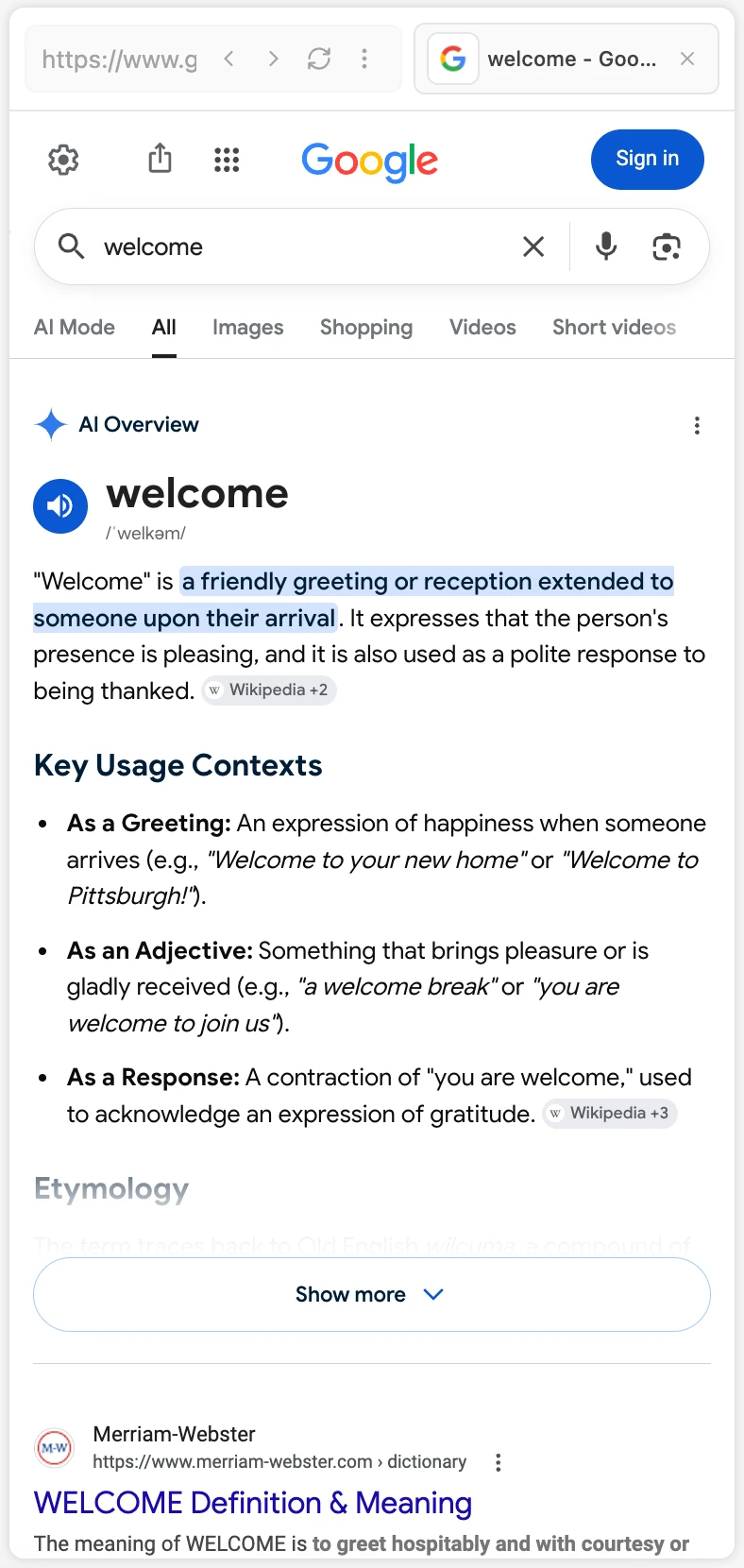
Open a page
- Click Browser in the title bar or press
⌘⇧B, then type in the address bar. - Click a Link anywhere in Lino: a Link on the Canvas, a link in a Card, a link in a Lino AI reply. Links open here, not in your system browser.
- Double-click a Link in the Artifacts Gallery.
With no page open, the tab shows "Open a Link to preview it here" and your History.
The address bar
Type in Enter URL or search... and press Enter:
- Something that looks like an address (has a dot, or starts with
http) opens as a page. - Anything else is searched with your search engine.
Inside the bar are Back, Forward and Refresh, then Show zoom slider, Show History and More. On a narrow panel, zoom and History move into More.
More also holds:
- Block ads: on by default. Blocks ads and trackers on every page. Turning it off reloads the page.
- Search engine: Google, DuckDuckGo or Bing.
Zoom
Show zoom slider opens a Zoom slider (50%–200%). Click the percentage to go back to 100%. Pages start at a zoom that suits the panel's width.
When the panel is very narrow, sites get their mobile layout.
The page tab
The page you're on appears as a tab next to the address bar, with its icon and title. Its buttons:
- Add to Canvas: saves the page as a Link on your current Canvas. If it's already there, the button becomes Show in Canvas and takes you to it.
- More: Add bookmark / Remove bookmark, Copy URL, Open in default browser.
- × (Close page), or
⌘W: closes the page and shows History.
The browser shows one page at a time; there are no browser tabs inside it. Go back and forward with the buttons, or swipe sideways with two fingers over the page.
Bookmarks
The bookmark bar under the address bar shows your top-level bookmarks. Click one to open it.
- Add a bookmark: open the page tab's More → Add bookmark. It goes to the front of the bar. You can also bookmark a page from its row in History.
- All (at the right end of the bar) opens every bookmark, including folders. Search bookmarks... filters them. Hover a bookmark for Move to top or Delete. Deleting a folder deletes the bookmarks in it, after you confirm.
- Bookmark folders come from importing. You can't create or rename folders in Lino yet.
Each profile has its own bookmarks.
History
Click Show History to see the pages you've visited in this profile (up to 200).
- Search history... filters the list.
- Hover a row for Add bookmark, More (Copy URL, Open in default browser) and Remove from history. Right-click a row for the same menu.
- Clear all empties the history at once, without asking.
Drag the bar at the bottom of the History list to make it taller; double-click the bar to go back to the normal height.
Profiles
A profile is a separate browser identity. Each one has its own sign-ins (cookies), bookmarks and history, so you can be logged in to a work and a personal account of the same site in two profiles. The search engine and Block ads are shared by all profiles.
Switch profiles
The profile pill sits at the bottom left of the page as an emoji (🌐 for the default profile). Hover it to see the profile's name, and click it to:
- Pick another profile. The current page reloads in that profile.
- Import… from another browser.
- Manage profiles… to open the settings.
Manage profiles
Open Settings → Browser:
- New profile adds a profile. It starts empty.
- Click a profile's emoji to change it, and Rename to rename it. In use marks the current one.
- Delete removes a profile. Every site signed in there is signed out, and its bookmarks and history are deleted. The default profile can't be deleted.
- Links that open a new tab: where a link meant for a new tab opens, in the Right panel (default) or a Small window. Sign-in popups always open in a small window.
Import from Chrome, Arc or Dia
On a Mac, Lino can bring over your sign-ins and bookmarks from Google Chrome, Arc or Dia.
- Click the profile pill → Import… (or Settings → Browser → Import…). Lino may also offer this itself the first time it finds one of these browsers; choose Don't remind me to stop it.
- Choose a browser.
- Choose which of its profiles to import.
- Choose Where it goes:
- A profile each: every imported profile becomes a new profile here, like "Work (Chrome)".
- All into one: everything goes into one profile you pick.
- Choose what to bring: Sign-ins and / or Bookmarks. Optionally list Only these sites' sign-ins, for example
github.com, figma.com. - Click Start import. When macOS asks to let Lino read "Chrome Safe Storage" (or Arc's, or Dia's), choose Allow.
The last screen shows what was imported per profile. If you chose Deny in the macOS prompt, bookmarks still import, and Try sign-ins again lets you retry the sign-ins.
What comes over: the browser's bookmark bar becomes your bar, other bookmarks become folders, and from Arc your Favorites become the bar and each Space a folder of its pinned tabs. History, saved passwords, extensions and settings are not imported.
Signing in and passkeys
Most sites sign in as usual. Sign-in popups (such as "Sign in with Google") open in a small window, which has Open in Right Panel and Copy URL in its title bar.
Passkeys don't work in the embedded browser. When a site asks for one, a notice says so:
- Choose Try another way on the site to sign in with a password or code instead, or
- Click Import sign-in to copy just that site's sign-in from Chrome, Arc or Dia. Pick the browser profile that's signed in, allow the macOS prompt, then close the dialog and sign in again where you started. Lino returns you to that page.
Some features, like voice input on a site, don't work in the embedded browser either. The notice then offers Open in default browser.
Drag from a page into Lino
- Text: select it. A Drag to Canvas/Card hint appears above the selection. Drag the selection (or the hint) onto the Canvas to make a Card with the quote and a link chip to the page, titled with the page's title. Drop it into a Card you're editing to insert it there with the same chip.
- Pictures: hover an image and the Drag to Canvas/Card hint appears next to the pointer. Drag it onto the Canvas and it becomes an Image, saved in Lino, that remembers the page it came from. Drop it into a Card to insert it there.
Look and feel
The address bar and bookmark bar take on the page's own background colour, so the browser blends with the site you're on. There's nothing to set for this.
Limits
- No find-in-page, downloads or multiple tabs yet. For those, use Open in default browser.
- Profiles and import are only in the desktop app. Import works on a Mac.
- In the web version of Lino, some sites can't be shown at all because of their security settings.
Related
- Right Panel
- Files Preview: the same drag-to-Lino for PDFs and books