Working with Objects
Everything you put on a Canvas — Cards, Images, Links, Sketches, Charts, Tables and Sparks — works the same way underneath. Learn these basics once and they apply to every kind of object.
Artifact and object: the one idea to know
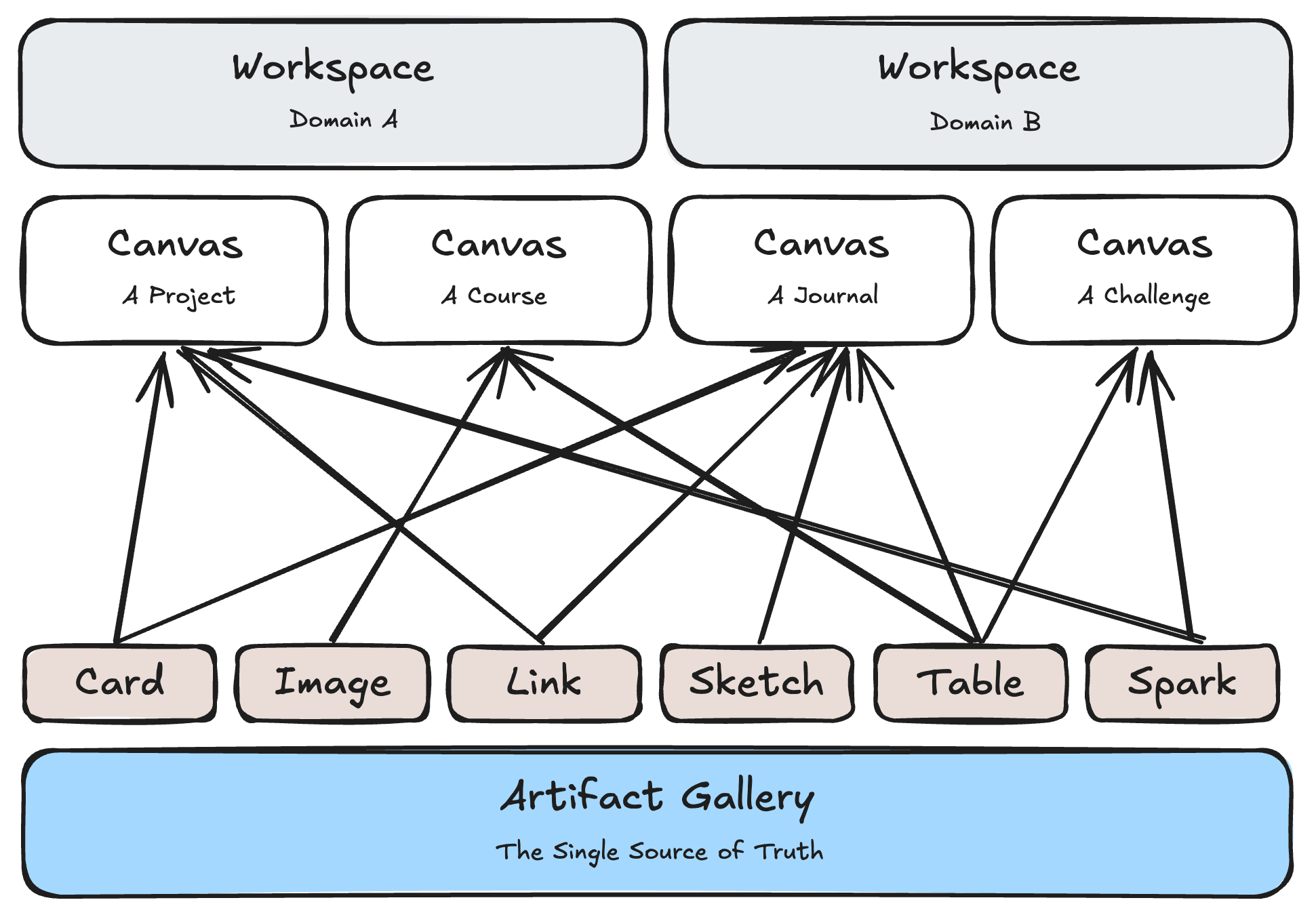
An Artifact is the thing itself — the Image, the Link, the Table. An object is one placement of that Artifact on a Canvas: where it sits, how big it is.
- Every Artifact lives in the Artifacts Gallery, whether or not it is on any Canvas.
- The same Artifact can be on many Canvases. Edit it in one place and it changes everywhere, because there is only one of it.
- A Canvas holds at most one object for each Artifact. If you add an Image that is already on this Canvas, Lino takes you to the existing one instead of adding a copy.
- An Artifact can also appear inside a Card's text as a Reference, as many times as you like. See References.
Example: you keep a photo of a leaf on your "Biology" Canvas and your "Field trip" Canvas. Crop it on one, and the other shows the new crop too. Remove it from "Field trip", and it stays on "Biology" and in the Gallery.
Remove vs. Delete
| Action | Where | What happens |
|---|---|---|
| Remove instance ("Only remove from this Canvas") | Right-click the object, or select it and press Delete | Takes the object off this Canvas only. The Artifact stays in the Gallery and on other Canvases. |
| Delete | Right-click menu, Gallery, Right Panel More menu | Deletes the Artifact itself, from every Canvas. |
Deleting asks no question first: press ⌘Z to take it back. On the desktop app, deleted Artifacts also wait for 30 days under the Gallery's Deleted filter, where you can drag them back onto a Canvas.
Add, select and move
- Create from the Canvas right-click menu, under Create: Card, Image (upload), Sketch, Table. Under Organize & Layout (Add) you'll find Nested Canvas and Divider / Axis.
- Add something that already exists with Quick add (
⇧A), by dragging it from the Gallery, or with Add to Canvas in the Right Panel. - Paste or drop pictures and URLs straight onto the Canvas — see Image and Link.
- Click to select, drag to move,
⇧-drag a blank area to add to a marquee selection,⌘Ato select everything. - Drag a handle on a corner to resize. (The top-right corner has no handle; it holds the corner marks.)
Edit in place: double-click
Most objects have a resting face and an editing state. Double-click to start editing; hovering shows a hint such as Double-click to edit or Double-click to annotate.
While an object is being edited, a thin editing ring runs just inside its edge, and its own toolbar appears above it. Click anywhere outside the object, or press esc, to stop editing.
| Object | Double-click does |
|---|---|
| Image | Opens the picture for crop, comments and drawing |
| Link | Lets you edit its title and description |
| Sketch | Draws in place (Draw), or opens the code beside it (Diagram, Chart) |
| Table | Lets you edit cells, rows and columns |
Open in Right Panel
For more room, open the object in the Right Panel. Hover the object and click the panel button in its header (tooltip Open in Right Panel); while an object is being edited, the last button on its toolbar reads Right Panel. A Link opens in the Right Panel's Browser instead, because a Link is a web address.
Click the same button again to close the panel.
The right-click menu
Right-click any object for its menu. The rows are the same for every kind of object, in the same order; each kind adds only what applies to it.
| Row | For | What it does |
|---|---|---|
| Hide from AI | All | Switch: Lino AI stops reading this object (see below). |
| Copy as a reference | All | Copies a Reference chip. "Then paste into a Card or Table." |
| Copy URL / Open in default browser | Link | Copies the address / opens it in your own browser. |
| Copy as Markdown / Export as Markdown | Card | See Cards. |
| Copy as PNG / Download | Image, Sketch | Copies the picture, or opens export options. |
| Export as MD + CSV | Table | Saves the Table as files. |
| Caption with AI | Image, Sketch | Has Lino AI write the caption (Pro). |
| Modify with AI / Remix with AI | Spark | See Changing a Spark. |
| View history | Card, Sketch, Table | Earlier versions. |
| Connect to... | All | Start a Connection. See Connecting. |
| Move to Canvas... / Copy to Canvas... | All | Moves this object to another Canvas, or adds it there too. |
| Remove from Group | Objects in a Group | Takes it out of the Group (the object stays). |
| Remove instance | All | Off this Canvas only. |
| Delete | All | Deletes the Artifact everywhere. |
The same actions appear on Gallery tiles and in the Right Panel's More menu.
Several objects at once
Select several objects and right-click: you get the actions all of them share, worded for the selection, such as Hide all from AI, Download 3 Images, Export 3 Cards, Group, Connect to..., Move to Canvas..., Remove all from this Canvas and Delete ("Delete all selected objects everywhere"). Each one is a single ⌘Z step.
Hide from AI
Turn on Hide from AI for anything Lino AI should not see. From the next message on, Lino AI will not read it, or the name other objects use for it.
- Right-click → Hide from AI, or tick Hide from AI in the object's properties.
- A hidden object shows a small half-shut-eyes mark in its top-right corner (tooltip "Hidden from AI").
- If you try to send a hidden object to Lino AI, the composer asks you to remove it first.
More in Privacy.
Corner marks and the Connection badge
- Top-right corner: small marks stack here, most important first — an AI mark when Lino AI made or edited the object (its properties show Contributors), the Hide from AI mark, and on Cards, the Markdown file binding.
- Header, right side: the Connection badge shows how many Connections the object has. Click it to list them; drag from it to make a new one. See Viewing Connections.