Layout Tour
A one-screen map of Lino. You don't need to memorize anything; just know where to look. Each part links to its own page.
At a glance
| Where | What | Learn more |
|---|---|---|
| Middle | The Canvas, where you lay out your work | Canvas |
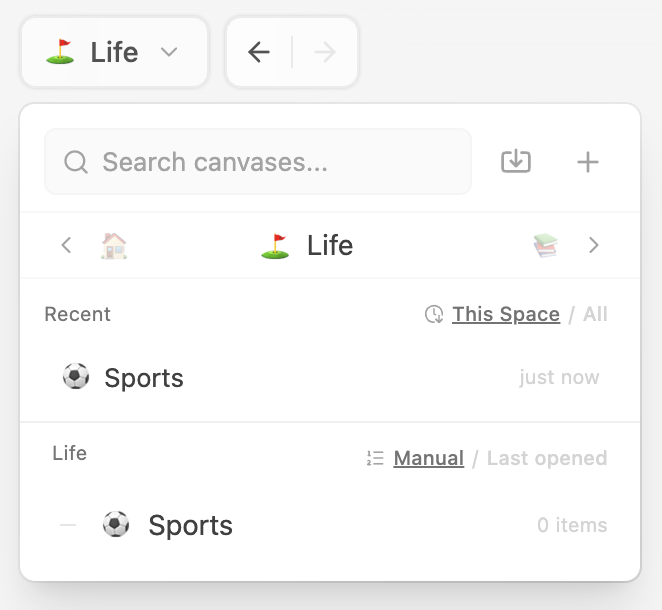
| Top left | Navigator, Back / Forward, Canvas / Bento switch, Spaces | Spaces |
| Top right | Artifacts · Schedule · Files · Browser, and the panel toggle | Right Panel |
| Right side | The Right Panel | Right Panel |
| Bottom left | Inbox Stack and Help | Inbox Stack |
| Bottom right | Canvas tools and the Lino AI button | Canvas settings, AI panel |
Anywhere, ⌘T | Start page | Start page |
The Canvas
The middle of the window is your Canvas: an infinite, zoomable surface. Pan with two fingers, pinch or ⌘-scroll to zoom. Right-click or double-click an empty spot to open the Canvas menu, where you add a Card or anything else.
On the Canvas you place Cards, Images, Links, Sketches, Tables and Sparks, and join them with Connections.
Hover any object to see its header. Open in Right Panel there opens it in the Right Panel with room to work.
Top left: where you are
- The navigator button opens the navigator, a tree of every Canvas in the current Space. See Organizing Canvases.
- Go Back / Go Forward step through the Canvases you've visited.
- Canvas View (
⌘1) / Bento View (⌘2) switch between the free-form Canvas and a tidy grid. See Bento view. - Space buttons below switch between your Spaces, such as Work and Study, and the built-in Daily Drafts and Archive.
Top right: the Right Panel's buttons
Four buttons open the four tabs of the Right Panel, and the last button shows or hides it:
| Button | Shortcut | Opens |
|---|---|---|
| Artifacts | ⌘⇧G | The Artifacts Gallery: everything you've made, searchable |
| Schedule | ⌘⇧D | Your to-dos and calendar: Schedule, Calendar |
| Files | ⌘⇧P | A reader for PDFs, books and other files: Files Preview |
| Browser | ⌘⇧B | A web browser: Browser |
The Right Panel
The Right Panel is a second surface beside the Canvas. Read a paper in Files while you take notes, keep your Schedule in view, or open a Card in a document-style editor (Artifacts Gallery → Write in a Card here). Drag its left edge to resize it, or maximize it to fill the window. Each tab keeps its place when you switch. See Right Panel.
The Start page (⌘T)
Press ⌘T from anywhere to open the Start page, Lino AI's front door. Tell it what you're working on; underneath are what's coming up on your Schedule and your recent work. See Start page.
Bottom left: Inbox Stack
The Inbox Stack collects new things that aren't on a Canvas yet: what Lino AI made for you, Quick Entry notes, phone captures and imports. Hover it to look through them, and drag one onto the Canvas to place it. See Inbox Stack.
Bottom right: tools and Lino AI
- Add Assets, Controller, Settings (Canvas Settings), Minimap and the zoom indicator. See Canvas settings.
- The Lino AI button opens the AI panel. Lino AI understands your Cards and Connections and works with you as a thinking partner. See Introduction to Lino AI and The AI panel.
That's the whole map. The rest of these docs go deep on each piece. A good place to start is Cards.