Spark
A Spark is a small interactive page that Lino AI writes for you from a description and your notes. You can click it, type into it, and it can keep what you enter. Use one when reading a Card isn't enough and you want to try the idea — move a slider, play a beat, quiz yourself.
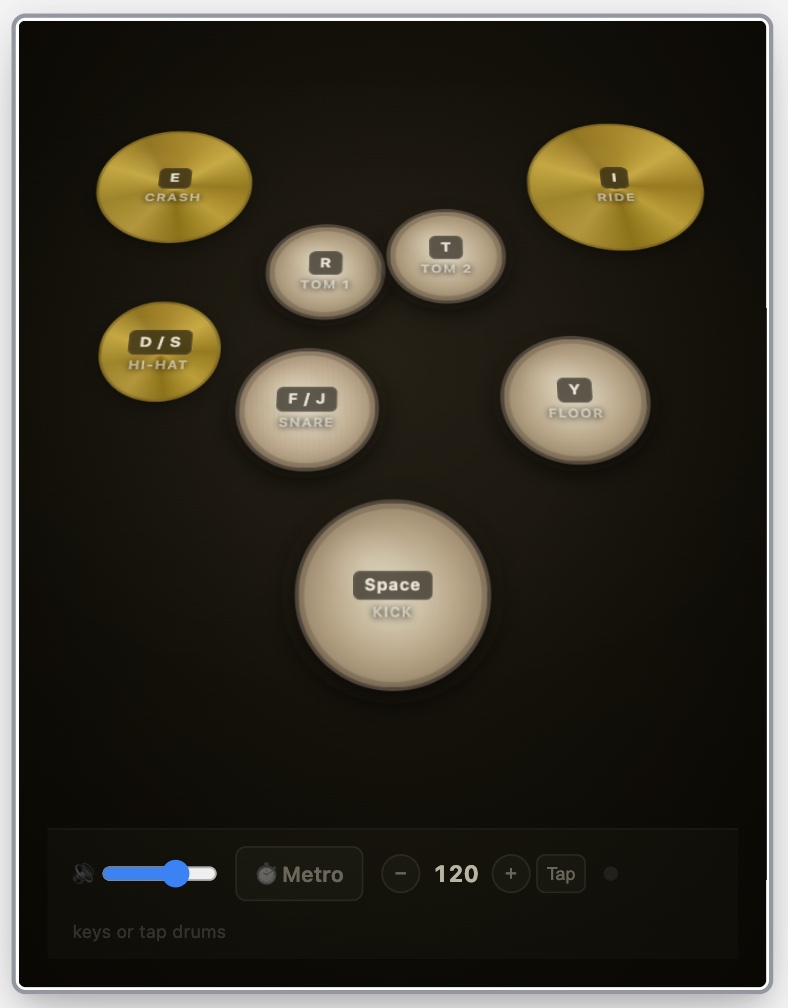
What a Spark can be
Some examples of what people build:
- A teaching simulator — a wave on a string you can pluck, with sliders for tension and length.
- A drum machine — tap a pad to hear it, toggle 16 steps to build a beat.
- A flashcard drill — quizzes you on the Concepts on the current Canvas and remembers your score.
- A live dashboard — today's weather for a city you type in, or a watchlist of stock prices (see Live Data).
Every Spark has one of seven categories, which you can see and change in its Properties: Productivity, Creation, Visual, Simulation, Life, Fun & Games and Other.
Spark or Deck?
A talk, a pitch or a lesson you present or export is a Deck, not a Spark. Make a Spark when the page takes input, keeps state or responds to you.
Spark or Chart?
A chart you only read — bars, lines, points, shares — is a Chart, not a Spark. Make a Spark when the page takes input, keeps state or responds to you. If you ask Lino AI for "a bar chart of these numbers", it makes a Chart; if you ask for "a chart where I can switch the time range", it makes a Spark.
Make a Spark
Sparks are made by Lino AI. There is no blank Spark to start from — you describe what you want and Lino AI writes it.
- Open the Canvas with the material you want to use. Select the Cards or Tables that matter, or
@-mention them in the message, so Lino AI knows what to build from. - Open the Lino AI panel and describe the Spark. Say what it should do, not just what it is about. For example: "Build a Spark that quizzes me on the Concepts in this Canvas, one at a time, and keeps my score."
- Send the message. Lino AI builds the Spark, loads it out of sight to check that it starts without errors, and fixes what it finds before telling you it is ready.
- The new Spark appears as a block in Lino AI's reply. Click the block to open it in the Right Panel.
The new Spark also lands in your Inbox, like everything Lino AI makes. Nothing is placed on a Canvas for you — drag it from the Inbox onto the Canvas where you want it.
Tips for a good Spark
- Describe the interaction. "Tap a drum name to hear it; toggle 16 steps to build a beat" gives a better result than "a drum Spark".
- Point at the data. If the Spark should use a Table, mention the Table. Lino AI can give a Spark permission to read specific Tables (see How Sparks Work).
- Start small, then ask for changes. You can keep improving a Spark with Modify with AI (see Change a Spark with AI).
- The check covers starting up, not every click. If something breaks while you use it, Lino shows the error over the Spark with a Fix with AI button.
Where Sparks live
A Spark is an Artifact, like a Card or an Image. It exists on its own, whether or not it is placed on a Canvas:
- Artifacts Gallery — every Spark is listed under the Spark tab. Double-click one to open it in the Right Panel, or drag it onto a Canvas.
- On a Canvas — a Spark shows as a cover picture until you run it. The same Spark can be on several Canvases; all of them run the same page with the same saved data.
- In the Right Panel — a Spark opens as a page in the Browser tab.
- In a Card — copy a Spark as a reference and paste it into a Card to show it as a chip or a block (see References).
Each Spark also has a glyph: a small one-colour mark that Lino AI draws for it. It shows in the corner of the Spark, on its Browser tab and in lists. A Spark without a glyph shows a plain tile.
Learn more
- Use a Spark — run it on a Canvas or in the Right Panel, resize it, scale its content.
- Change a Spark with AI — Modify, Remix and Fix with AI.
- How Sparks Work — saved data, Tables, Images, what a Spark can and can't do.
- Live Data — which online data a Spark can fetch, and how that stays safe.
- What Lino AI can do — everything else Lino AI can make for you.