Viewing Connections
A Canvas only shows part of your Workspace. These tools show you what an object is connected to, including objects that aren't on this Canvas or aren't on screen right now.
The Connection badge
The number in an object's header is its Connection badge. It counts how many different objects it's connected to across your whole Workspace. Two Relationships with the same object count once.
- A
0badge is faint until you point at it. - Hover the badge to see a tooltip like 3 Connections - Click to view.
- Click it to open the Connection list. Drag it to create a Connection.

The Connection list
Click the badge to open a list of everything the object is connected to, in up to three sections:
| Section | What's in it |
|---|---|
| In this Canvas: N | Connected objects that are on the current Canvas |
| Not in this Canvas: N | Connected objects that live elsewhere in your Workspace |
| Potential Concepts: N | Concept Cards whose names appear in this Card's text but aren't connected yet (Cards only) |
Each row shows the other object's icon and name. The list follows the sort you chose in Manage relationships (Priority or Last created; see Relationships). Each object appears once, under its top Relationship.
Hover a row
Hovering a row:
- shows the Relationship name, read from this object's side (for example "supported by"),
- highlights the object on the Canvas if it's there,
- shows a preview of it,
- reveals the row's buttons:
| Button | Shown when | What it does |
|---|---|---|
| Show (Show in Canvas) | The object is on this Canvas | Closes the list and moves the view to it |
| Add (Add Instance to Canvas) | The object isn't on this Canvas | Places it on this Canvas, next to the object you opened the list from |
| Disconnect | The Connection is one you can remove | Removes it. A message confirms, and ⌘Z undoes it |
Clicking the name itself does the same as Show. If the object isn't on this Canvas, the buttons flash to show you what you can do.
Embeds and Relation property Connections have no Disconnect button (see Embeds).
Hover and focus
- Hover a line and it glows and its label lifts, so you can tell which line is which in a busy area.
- Hover an object and its Connections are highlighted.
- Focus Isolate dims everything not connected to the object you're pointing at. Choose how it starts in Settings → Focus Isolate: Space + Hover (hold
Spacewhile hovering) or Hover.
When you're zoomed out and objects are too small to read, hovering shows their names so you can follow the web without zooming in.
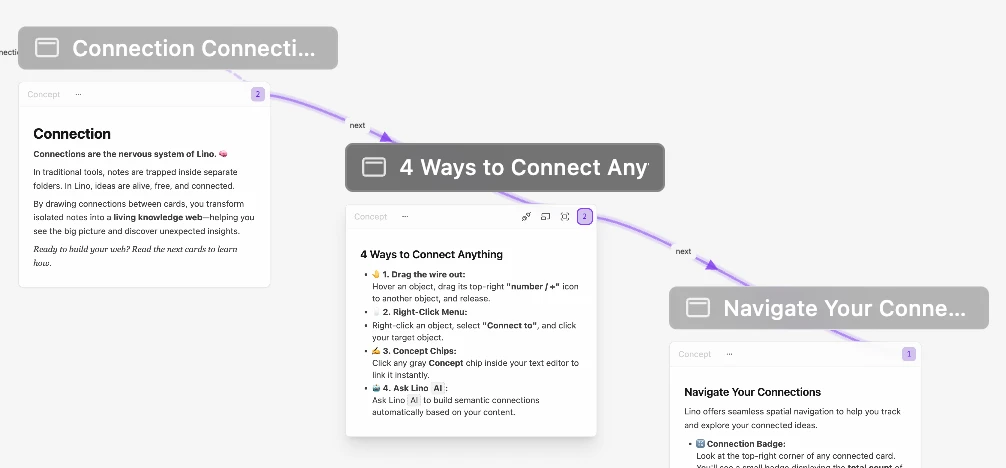
Signposts for off-screen objects
When a connected object is off-screen, a small signpost pill can appear at the edge of the window, pointing toward it. Click a pill to move the view there. Hovering a line shows signposts only for its two ends.
Choose what gets signposts in Settings → Signposting ("For off-screen objects"):
| Option | What it does |
|---|---|
| Connected | Signposts for objects connected to the one you're hovering |
| Ubiquitous | Signposts for off-screen objects on the Canvas, even without hovering |
| Close | No signposts |