Alias & Variable
A Concept rarely has just one name, and the same word doesn't always mean the same thing. Aliases and Variables handle these two cases. Both belong to a Concept Card — a Plain Card has neither.
| What it solves | Example | |
|---|---|---|
| Alias | One idea, several names | AI, Artificial Intelligence and 人工智能 all point to one Card |
| Variable | One name, several ideas | Apple (fruit) and Apple (company) are two separate Cards |
Aliases — one Concept, many names
An Alias is another name for the same Concept Card: a synonym, an abbreviation, a translation. Lino treats every Alias like the Concept itself, so when you write any of those names in another Card, Lino recognizes the same Card.
Example: the Concept Card "AI" has the Aliases Artificial Intelligence and 人工智能. Writing "人工智能" in a Card about machine translation still finds "AI".
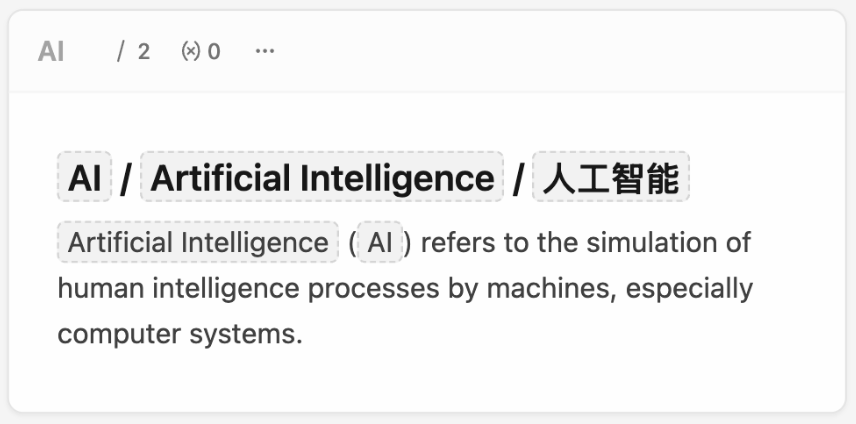
Add an Alias from the Card header
- On a Concept Card, click the Alias button next to the Concept (it shows the number of Aliases, e.g.
0). - Click Add alias, type the name, and press
↵.
To change or remove an Alias, open the same menu and hover its row: the pencil edits it, the trash can removes it. Clearing an Alias's text also removes it.
Type Aliases with the naming syntax
You can also write Aliases straight into the name, separated by a slash with a space on each side:
AI / Artificial Intelligence / 人工智能
The first name becomes the Concept; the rest become Aliases. Without spaces the slash is just part of the name — AC/DC and Pros/Cons stay one name.
Variables — one name, many meanings
A Variable is a namespace for a Concept. Two Concept Cards can have the same name as long as their Variables differ, so identical words in different contexts never get mixed up.
Example: Apple (fruit) 🍎 and Apple (company) 📱 are two Concept Cards, both called "Apple".
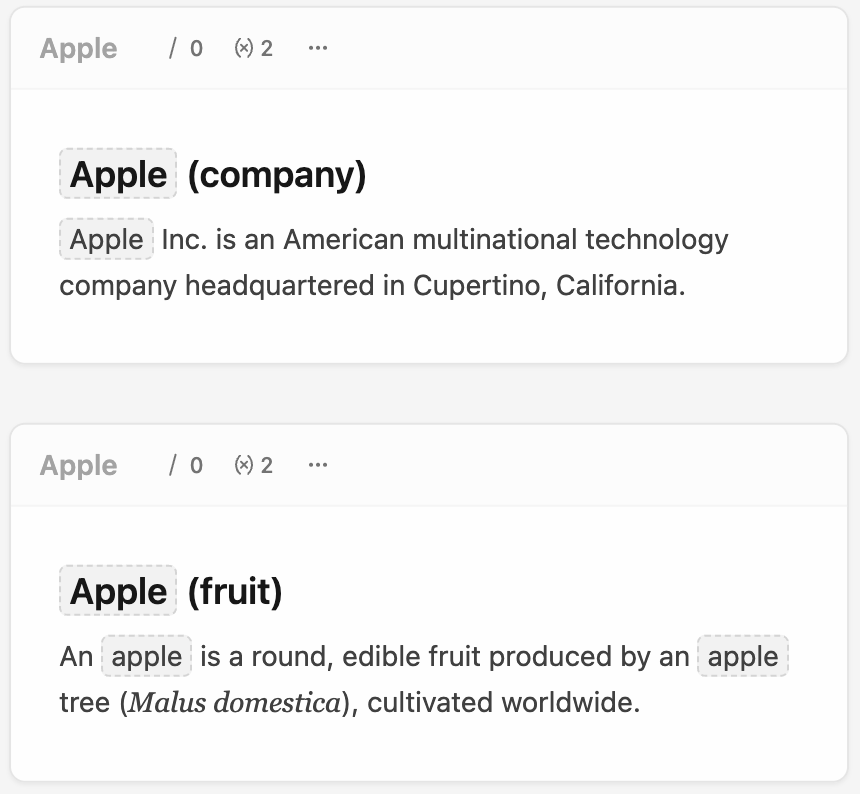
A Card without a Variable lives in the default namespace, shown as (default).
Set a Variable from the Card header
- On a Concept Card, click the Variable button (the
(x)icon next to the Alias button). - Under Current Variable, click Add variable, type a name, and press
↵.
The menu also lists Other Variants — the other Cards with the same Concept and a different Variable. Hover one to preview it. The number on the button is how many Cards share this name.
To change the Variable, hover its row and click the pencil; the trash can removes it. Variables are stored in lowercase, so Fruit and fruit are the same Variable.
Set a Variable on several Cards at once
Select several Concept Cards on the Canvas, right-click the selection, and choose Set Variable. Type the name and press ↵ — every selected Concept Card gets it (Plain Cards in the selection are skipped). If a selected Card would then clash with another Card of the same name, Lino adds a number to keep them apart, e.g. fruit 1. Leave the box empty to move the Cards back to the default namespace.
Type a Variable with the naming syntax
Put the Variable in parentheses at the end of the name:
Apple (fruit)
Apple / 苹果 (fruit)
Full-width parentheses () work too, so you can stay in a Chinese input method.
The full naming syntax
Concept / Alias1 / Alias2 (Variable)
You can type it in two places:
- The Concept field in the Card header — click it; the empty box shows the hint
Concept / Alias (Variable). - The first heading of the Card, when Auto Concept is on. See Concept Card → Auto Concept.
| You type | Concept | Aliases | Variable |
|---|---|---|---|
Vector | Vector | — | — |
Vector / 向量 | Vector | 向量 | — |
Vector (physics) | Vector | — | physics |
Vector / 向量 (physics) | Vector | 向量 | physics |
AC/DC | AC/DC | — | — |
When Auto Concept is on and you add an Alias or Variable from the header or the Properties panel, Lino writes it back into the first heading so the two stay in sync. When you turn Auto Concept off, the heading loses the / … and ( … ) parts and keeps only the name.
Names must be unique
Within one Variable, every name — Concept and Alias — can belong to only one Card. Matching ignores upper and lower case. If two Cards claim the same name, Lino opens the Concept Already Exists dialog. See Concept Card → When a name is already taken.
A Variable is the usual way out: Apple taken? Make yours Apple (company).
Related
- Concept Card — what a Concept is and how Auto Concept works.
- References & chips — how names you write turn into links.
- Properties — Aliases and Variable also appear as rows in a Card's Properties.