Link
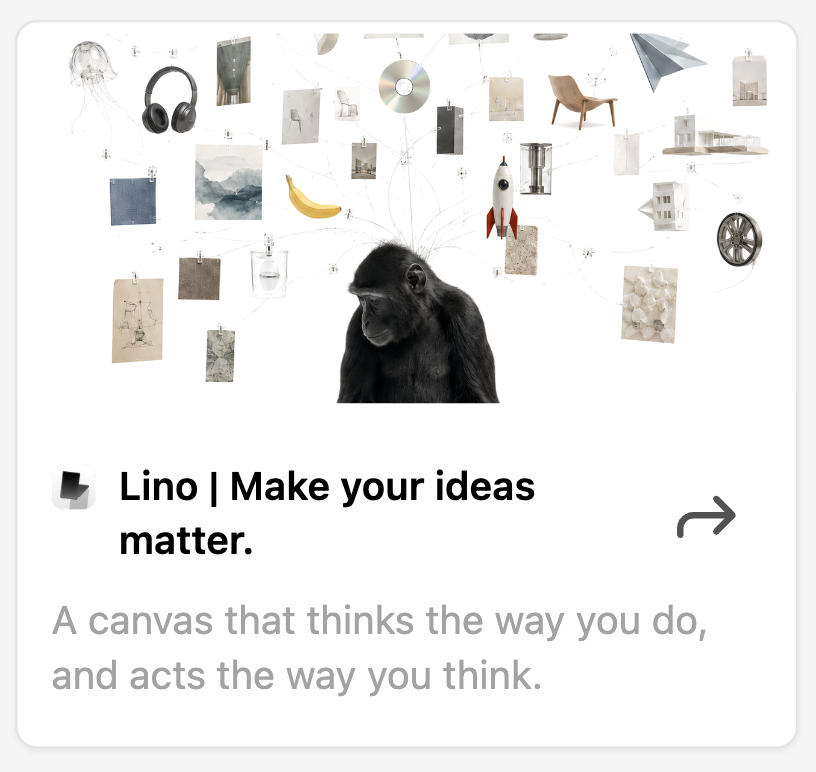
A Link is a web page saved on your Canvas. Paste an address and Lino fetches the page's title, description, cover picture and site icon, so a pile of URLs becomes something you can see, arrange and connect to your Cards.
Add a Link
- Paste a URL on the Canvas (
⌘V). The Link appears right away; its title and picture fill in a moment later. - Drag a link from a web page or from the Right Panel's Browser onto the Canvas.
- From the Browser: open a page in the Right Panel's Browser and use Add to Canvas.
- Quick add (
⇧A) or drag from the Artifacts Gallery for a Link you saved before.
If the URL is already on this Canvas, Lino takes you to the existing Link. Pasting a Giphy or Pinterest address adds an Image instead.
Lino also fetches the title and icon for addresses you type into a Card, a Table cell or a property, so a Link chip anywhere reads as the page's name.
What a Link shows
From top to bottom:
- Cover picture — the page's preview image, when it has one.
- Site icon and the Properties button, on the left.
- Title — up to three lines. If the page has no title, the domain is shown.
- Open in Right Panel button, on the right of the title.
- Description — the page's summary.
Edit the title and description
- Double-click the Link.
- Click the title or the description. An edit box opens next to it (an empty description says Add description).
- Press
↵to save, orescto close the box. - Click outside the Link, or press
escagain, to stop editing.
You can also edit Title and Description in the Link's Properties. Either way, every Card that references this Link updates its chip to the new title.
Collapse and expand
Hover the Link and click Collapse in its header to hide the cover picture and description, leaving a compact title row. Expand brings them back.
Videos
A Link to a video (for example YouTube) gets a Play button in its header: the video plays right on the Canvas. Stop ends it. If the site doesn't allow embedding, open the Link in the Right Panel to watch it.
Open the page
- Open in Right Panel (the panel button beside the title): opens the page in the Right Panel's Browser, next to your Canvas. Click the button again to close it.
- Open in default browser (right-click): opens the page in Safari, Chrome or whatever browser you use.
- Copy URL (right-click): copies the address.
When the Browser shows a saved Link, its tab has a type icon and a More menu with the same Link actions.
Properties
Click Properties to see and edit: URL, Title, Description, Fetch (whether fetching the page worked), Contributors, Created, Updated, Hide from AI, and any properties you add.
Related
- Working with Objects
- Right Panel — the Browser
- References — Link chips inside Cards