Card
A Card is Lino's basic note: a block of rich text that lives on a Canvas. It can hold headings, lists, to-dos, tables, code, equations, pictures, and References to anything else in Lino. Give a Card a Concept and it becomes a named idea that other Cards can find and link to.
A Card is one thing that can appear in many places. The same Card can sit on several Canvases, be shown inside other Cards, and be found in the Artifacts Gallery. Change it in one place and it changes everywhere.
Create a Card
- From the Canvas menu: double-click an empty spot on the Canvas (or right-click it) and choose Create → Card.
- With Quick add: press
⇧Aon the Canvas, or pick Quick add from the same menu, to search for anything or create something new. - From another Card: in a Card's text, type
@and a new name, then pick Create new concept card. Or select a passage and click Extract to move it into a new Card. See References & Chips.
New Cards made by Lino AI wait in the Inbox for you to place them.
Write in a Card
- Double-click a Card's body to start editing; press
escor click outside to stop. - Type
/for the block menu,@to reference something, and select text for the formatting toolbar.
Everything about writing is on Writing in a Card.
Concept Card or Plain Card
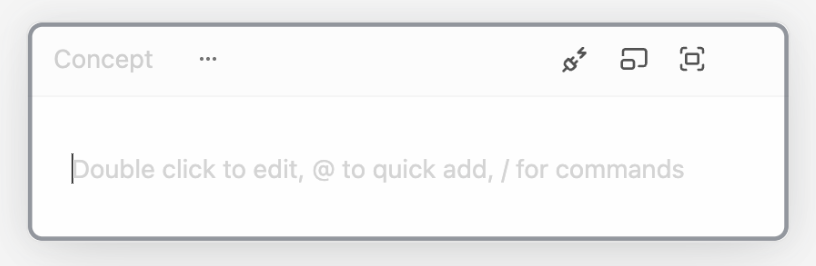
The left of a Card's header holds its Concept — its name. A Card with a Concept is a Concept Card; a Card without one is a Plain Card, and shows a faint Concept placeholder there.
By default, a Card takes its Concept from its first heading: start a Card with # Photosynthesis and it becomes the Concept Card "Photosynthesis". See Concept Card.
The Card header
The header shows the Card's name on the left and its tools on the right. The tools appear when you hover the Card (and stay while you edit it).
| Part | What it does |
|---|---|
| Concept | Click to name or rename the Card. |
| Alias / Variable buttons | On Concept Cards: manage other names and the namespace. See Alias & Variable. |
| … (Properties) | Open the Card's Properties. See Properties. |
| Auto Concept | Switch whether the Concept follows the first heading (Unsync Concept / Sync Concept with the first heading). |
| Collapse content / Expand content | Fold the Card down to its header, or open it again. |
| Open in Right Panel | Open the Card beside the Canvas in a roomy editor. Click again (Close Right Panel) to close it. |
| Comment button | Appears when a comment is out of view; jumps to it. |
| Fit to content | Appears when you've set the height by hand; makes the Card grow with its text again. |
| Connection badge (the number) | How many Connections the Card has. Click it to list them; drag from it to connect the Card to something. See Connection. |
Corner badges
Small badges on a Card's top-right corner tell you about it at a glance:
- Sparkle — Lino AI made or changed it. Hover for details, e.g. "AI generated" or "Partly AI · ~40%".
- Eye-off — the Card is hidden from AI.
- Blue folder — the Card is bound to a Markdown file.
Move, resize and fold
- Move: drag the Card. Hold
⇧while dragging to move in a straight line; hold⌥while dragging to duplicate it. - Resize: drag any edge, or the top-left, bottom-left or bottom-right corner. (The top-right corner is kept for badges.)
- Height: a Card grows with its text. Once you drag its height by hand it stays that size and scrolls; click Fit to content in the header to let it grow again.
- Fold: Collapse content shrinks the Card to a small tab showing its name; Expand content opens it.
Right-click a Card
| Item | What it does |
|---|---|
| Hide from AI | Keep Lino AI from reading this Card. |
| Copy as a reference | Copy a chip you can paste into another Card or a Table. |
| Copy as Markdown / Export as Markdown | Copy the text, or save it as a .md file. |
| Change color | Give this Card a background color on this Canvas. |
| Search & replace | Find and replace text in this Card. |
| View history | See earlier versions and restore one. |
| Connect to... | Draw a Connection to another object. |
| Move to Canvas... / Copy to Canvas... | Move the Card to another Canvas, or also show it there. |
| Duplicate as copy | Make a new, independent Card with the same content. |
| Remove instance | Take the Card off this Canvas only. The Card itself stays in the Artifacts Gallery. |
| Delete | Delete the Card everywhere. ⌘Z undoes it, and it stays in Recently deleted for 30 days. |
Select several Cards to act on them together — for example Set Variable, Group, or Export as Markdown.
Remove vs delete
A Card and the places it appears are separate. Remove instance only takes the Card off this Canvas; it still exists, other Canvases still show it, and you can find it in the Artifacts Gallery. Delete removes the Card itself.
Related
- Writing in a Card — blocks, formatting, shortcuts and paste.
- References & Chips — link to other Cards and objects from your text.
- Properties — structured fields.
- To-dos & Tasks — to-do items in Schedule.
- Comments — discussing a passage.
- Concept Card and Alias & Variable — naming.