Spaces
A Space is a group of Canvases for one area of your life — a domain, a discipline, a role. Keep "Work", "Study" and "Personal" apart so each has its own Canvases, its own Recent list and its own place in the sidebar. (In a few places the app still says "Workspace" — it's the same thing.)
Every account has two built-in Spaces as well: Daily Drafts and Archive.
How a Space is laid out
A Space is a tree:
- The Space's top Canvas holds its Canvases as tiles. You can arrange those tiles, but you can't put Cards or other objects directly there.
- Canvases inside it hold your actual work.
- Nested Canvases sit inside other Canvases, as deep as you like.
For example, a "Study" Space might hold a "Biology 101" Canvas, which holds nested "Cells" and "Genetics" Canvases.
Switch between Spaces
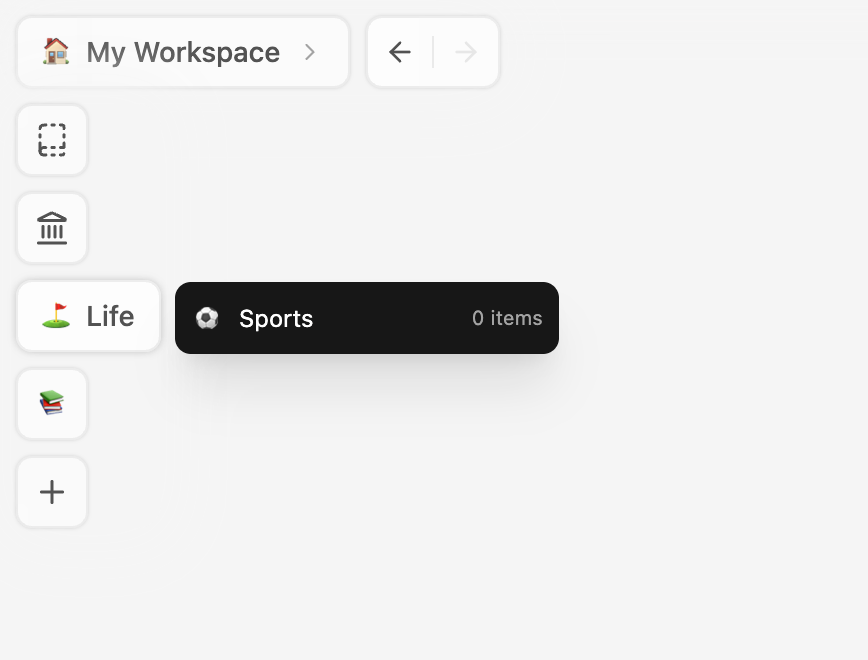
In the top-left corner, below the button for your current Space, is a column of Space buttons.
- Daily Drafts is always there.
- Hover the column to reveal your other Spaces, Archived, and + to add a Space.
- Hover a Space button to preview it: a dark panel lists its Canvases, most recently opened first (up to ten, then "+ N more"), with how many items each holds.
- Click a Space to open it.
You can also switch from inside the navigator (open it with the button in the top-left):
- Click the ‹ or › arrows on either side of the Space's name. Their tooltips name the Space you'd go to.
- Or swipe with two fingers across the navigator: swipe right for the previous Space, left for the next one. The row slides as you swipe, so you can see which Space you'll land on.
Go to a Space's top Canvas
- Click the Space's name in the navigator (Go to Space).
- Or, while you are inside one of its Canvases, click the Space's button in the top-left corner.
Create a Space
- Open the navigator and click More (⋮) beside Search canvases....
- Choose Create Space ("For a domain, a discipline, a role").
- Type a name in Space Name... and, if you like, click the icon to pick an emoji.
- Click Create Space.
You can also click + at the bottom of the Space column in the top-left corner.
On the Free plan you have one Space of your own; creating another needs a paid plan. When you're at the limit, the + button reads Space Limit Reached.
Edit a Space
- Open the navigator, click More (⋮), and choose Edit Space ("Rename, rearrange or delete").
- The Space row becomes editable:
- Rename — type the new name. Press
Returnor click away to save;Esccancels. - Change the icon — click the icon.
- Reorder — Move left / Move right change where the Space sits in the order. The number between them is its position.
- Delete — the trash button, Delete Workspace.
- Rename — type the new name. Press
To change only the icon, you can also click the icon beside the Space's name in the navigator at any time (Change Icon).
Daily Drafts and Archived can't be renamed, re-iconed, moved or deleted.
Delete a Space
Deleting a Space removes the Space and every Canvas in it, nested ones included. The Cards, Images and other Artifacts that were on those Canvases stay in your Artifacts Gallery.
- More (⋮) → Edit Space → Delete Workspace.
- Type
deleteto confirm.
This can't be undone. You can't delete your last remaining Space.
Tips
- Not sure whether something deserves a Space or a Canvas? A Space is "a field I work in"; a Canvas is "a project, a course, a topic" in that field. Most people need only a handful of Spaces.
- Each Space keeps its own fold state in the navigator, so switching Spaces shows that Space's tree as you left it.
Related
- Organizing Canvases — the Canvas tree inside a Space.
- Daily Drafts & Archive.