Writing in a Card
A Card's body is a block editor that speaks Markdown. Each paragraph, heading, list, table or picture is a block that you can turn into another type, color, move and duplicate. This page covers everything you can write; for links to other things in Lino, see References & Chips.
Start and stop editing
- Double-click the Card's body to start editing. The cursor lands where you clicked. (Hovering a Card shows the hint Double-click to edit.)
- Press
escor click outside the Card to stop editing. Clicking the editor's own menus and toolbars doesn't count as outside.
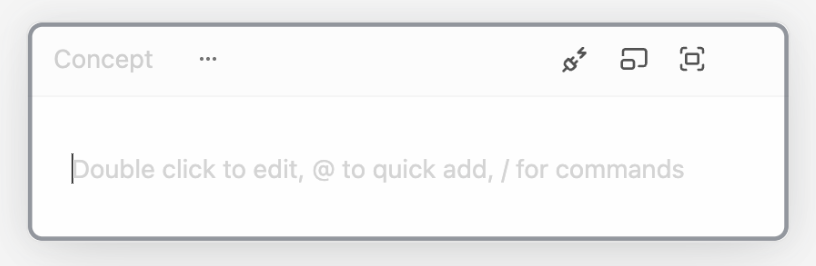
An empty Card reminds you of the two keys to remember: @ to quick add, / for commands.
The / menu: insert any block
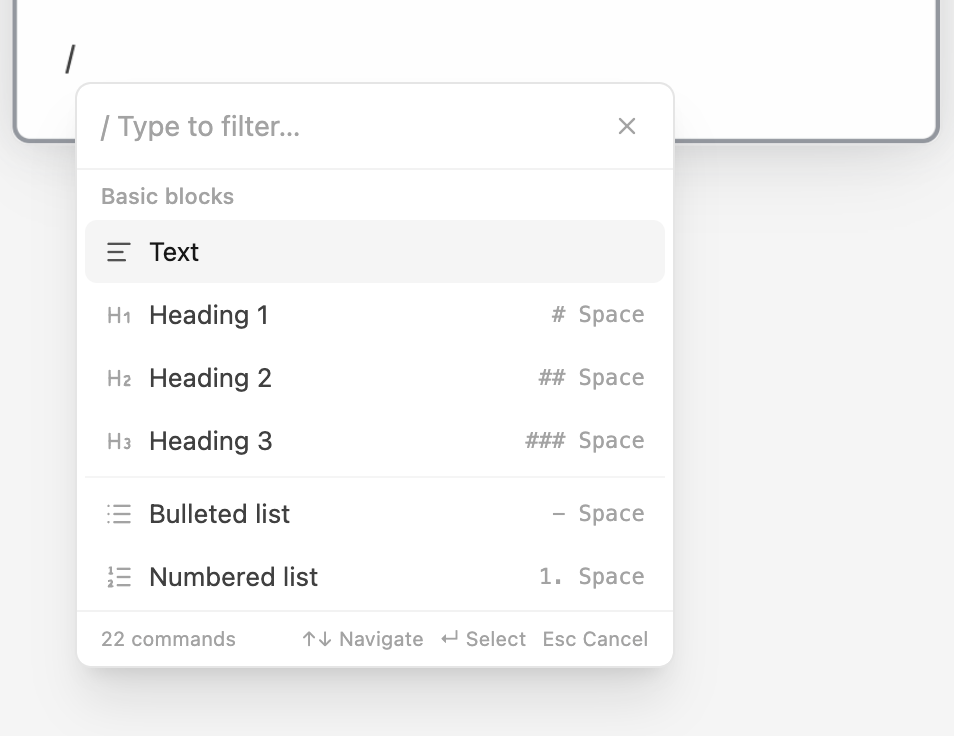
Type / at the start of a line or after a space. Keep typing to filter (Type to filter…), use ↑ ↓ to move, and press ↵ or Tab to insert. esc closes it. The first group, Suggested, holds your five most recently used commands.
| Group | Command | Shortcut you can type instead |
|---|---|---|
| Media | Image — upload a picture from your computer | — |
| Structure | Table — a 3 × 3 table with a header row | — |
| Basic Blocks | Text | — |
| Heading 1 / Heading 2 / Heading 3 | # / ## / ### | |
| Bulleted List | - | |
| Numbered List | 1. | |
| To-Do List | [] | |
| Quote | > | |
| Callout | — | |
| Divider | --- | |
| Code Block | ``` then space | |
| Inline Code | `code` | |
| Equation Block | — | |
| Inline Equation | $x^2$ | |
| Date & Time | Date, Today, Tomorrow, Yesterday | — |
| People | Person | @people |
Inside a to-do item, Date and Person move to the top, because that's how you give a task a due date and an owner. See To-dos & Tasks.
The block handle ⋮⋮
While editing, hover a block: a grip (Block options) appears on its left.
- Drag the grip to move the block up or down inside the Card. A line shows where it will land.
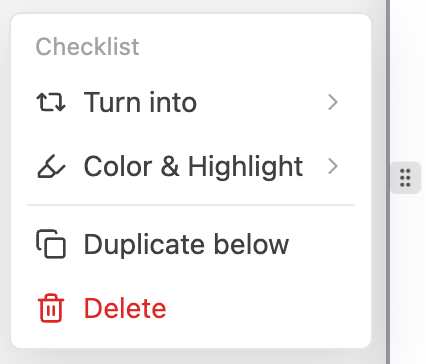
- Click the grip for the block menu:
| Item | What it does |
|---|---|
| Turn into › | Change the block to Text, Heading 1–3, Bullet List, Numbered List, Checklist, Quote, Code Block or Callout. On a Reference block it offers Chip and Text instead. |
| Color & Highlight › | Color the whole block's text, or give it a highlight. Remove color clears it. |
| Add line above / Add line below | Insert an empty line. |
| Duplicate below | Copy the block right under itself. |
| Delete | Remove the block. |
The menu's heading tells you the block's current type.
Blocks can't be dragged out of the Card onto the Canvas. To move text into a new Card, select it and use Extract (below).
The selection toolbar
Select some text and, after a moment, a toolbar appears above it. From left to right:
| Button | What it does |
|---|---|
| Turn into (shows the current block type) | Same list as the block menu, plus Equation, which turns the selection into an equation block. |
| Case | Cycles the selection through UPPER, Capitalized and lower case. |
| Subscript / Superscript | Cycles Subscript → Superscript → Normal. |
| Paragraph Tools (only when several lines are selected) | Soft → Hard Return, Returns → Spaces (⎵), Remove Blank Lines, Capitalize First Letter. |
| Clear all formatting | Removes bold, italic, colors, inline code and any styling that came in with a paste. |
| Text formatting | Bold ⌘B, Italic ⌘I, Underline ⌘U, Strikethrough ⌘⇧S. |
Color & Highlight ⌘⇧H | Ten text colors and ten highlights. A piece of text has one or the other, not both. |
| Inline equation | Turns the selection into an inline equation (or back). |
| Inline code | Turns the selection into inline code (or back). |
| Link chip | Turns the selection into a Link chip and asks for its address. |
| Add comment | Starts a comment thread on the selection. See Comments. |
| Extract / Link to / the selected words | See below. |
The last button depends on what you selected:
- Extract (tooltip Extract to new Card) — for a longer or multi-line selection. The text is cut out into a new Card placed beside this one. If the selection starts with a heading, that heading names the new Card.
- Link to (tooltip Link to existing concept) — when the words match an existing Concept.
- The selected words (tooltip Convert to new Concept Card) — for a short phrase that isn't a Concept yet. Creates the Concept Card and links the words to it.
See References & Chips.
Two dark buttons sit above the toolbar: Chat opens Lino AI, and Explain opens it with a request to explain your selection. See Lino AI.
⌘⇧H with nothing chosen reapplies your last color or highlight. esc hides the toolbar.

Markdown as you type
| Type | Get |
|---|---|
# … ###### | Heading 1–6 |
- , * or + | Bullet list |
1. | Numbered list |
[] , [ ] or [x] | Checklist (also inside an existing list item) |
> | Quote |
``` or ```python then space | Code block |
---, *** or ___ | Divider |
**bold** or __bold__ | bold |
*italic* or _italic_ | italic |
~~strike~~ | strikethrough |
==highlight== | highlight |
++underline++ | underline |
`code` | inline code |
$x^2$ | inline equation |
[text](https://…) | link |
#tag | tag |
Lists and checklists
Tabindents a list item one level;⇧Taboutdents it. The first item of a list can't be indented, and an item can go at most one level deeper than the one above. If a move isn't possible, the Card gives a little shake.- Click a checkbox to tick a to-do item. Every to-do item in a Card also shows up in Schedule.
Callouts
A Callout is a highlighted box with an icon — 💡 on gray by default. Click the icon to choose another; the color square at the bottom of the picker (Change Callout background color) sets the background: Gray, Brown, Orange, Yellow, Green, Blue, Purple, Pink or Red.
Code blocks
Each code block has its own bar:
- Language on the left — search with Search languages.... Choices include Plain Text, JavaScript, TypeScript, Python, HTML, CSS, JSON, Markdown, Bash, SQL, Go, Rust, Swift, Mermaid and more. Code is syntax-colored.
- On the right: Delete block, Clear contents, Fold code / Unfold code (folding is only for viewing; it isn't saved), and Copy code.
Tab inserts two spaces and ⇧Tab removes them, also across several selected lines. Mermaid code is colored but not drawn as a diagram inside a Card.
Equations
Lino writes math with LaTeX (KaTeX).
- Block equation: Equation Block in the
/menu, or select text and Turn into → Equation. - Inline equation: Inline Equation in the
/menu, the Inline equation button, or type$…$.
Double-click an equation to edit its LaTeX (Type LaTeX…). esc closes the editor; the arrow keys leave it at either end.
Tables
Insert one with Table in the / menu, or paste a Markdown table.
- Table options (the small chevron in a cell) has Merge cells / Unmerge cells, Insert row above / below, Insert column left / right, Delete column, Delete row, Delete Table, and the switches Row striping, Row header and Column header.
- Hover above a column for Drag to reorder and Sort column (Sort ascending / Sort descending), and at its edge for Add col to the right. Hover left of a row for Add row below.
- Drag a column or row border to resize it. Wide tables scroll sideways.
These are simple tables inside a Card's text. For a database-style Table with typed columns, see Table.
Images and charts
- Add an image: Image in the
/menu, paste one, or drag a picture file in. It's stored in your Workspace as an Image and shown as a Reference block. - Resize: while editing, drag the grips on either side; width snaps in 10% steps.
- Caption: the text under the picture.
- More: hover and click
⋮in the corner for alignment, Copy as PNG, Download and the other Reference actions.
A Chart (a Sketch drawn from data) can be added with @ like any Sketch. While you edit the Card, the chart is live — hover, click and drag go to the chart, as the Interactive hint on it says.
Pasting and dropping
| You paste or drop | You get |
|---|---|
| Markdown text (headings, lists, tables…) | Formatted blocks |
| Content from a web page or a document | The formatting, cleaned up: only Lino's own colors are kept, and code becomes inline code |
| A web address | A Link chip that takes the page's title |
| A picture | An Image block |
| Text copied with Copy as a reference | A chip or block |
| Text dragged from the Browser | A quote with a Link chip to the page |
| A passage dragged from a book in Files | A quote with a chip that opens the book at that spot |
To paste without any formatting, use ⌘⇧V (Paste Plain Text). In a code block, pastes always go in as plain text.
If a paste would create more Images or Links than your plan allows, the text goes in as plain text instead.
Undo, history and search
⌘Z/⇧⌘Zundo and redo Card edits, even after you stop editing and come back — they share the app's single undo history. Typing in quick succession counts as one step.- Version history: right-click the Card → View history. Pick a version to see what restoring would change, then Restore. There's no confirmation; you can
⌘Zit. Versions are saved when you stop editing, every so often during long sessions, and right before Lino AI changes the Card. Versions marked AI edited show where Lino AI changed the Card. - Search & replace in one Card: right-click it → Search & replace. Canvas search (
⌘F) also highlights matches inside Cards.
AI in the editor
- AI-made text: text Lino AI wrote is tinted while you edit, so you can see what to check. Turn this off with AI Provenance ("Highlight AI-made text while typing") in Canvas Settings.
- Inline autocomplete: with a Pro plan or higher, turn on Inline Autocomplete (beta) in Settings → Capabilities. Suggestions appear as gray text while you type; press
Tabor→to accept,escto dismiss. It doesn't run on Cards that are hidden from AI.
Related
- Card basics — create, move, resize and fold Cards.
- References & Chips — link to other things from your text.
- Properties — structured fields.
- To-dos & Tasks and Comments.